
Honeywell VisionPRO 8000 Installation Manual: A Comprehensive Guide
This manual details the TH8000 series touchscreen thermostat installation, offering guidance on setup, configuration, and troubleshooting for optimal HVAC system performance.
Access resources at honeywell.com or yourhome.honeywell.com for assistance, FAQs, and customer care contact information regarding the VisionPRO 8000.
Understanding the VisionPRO 8000 System
The Honeywell VisionPRO 8000 is a sophisticated, touchscreen programmable thermostat designed for comprehensive control of your home’s heating and cooling systems. This system offers flexibility with both automatic and manual changeover options, accommodating diverse HVAC configurations.
It’s crucial to understand the system’s adaptability, including dual-powered capabilities and schedule flexibility, to maximize its benefits. The VisionPRO 8000 supports various system types and provides dynamic control for enhanced comfort and energy efficiency.
Refer to the operating manual (69-1894EFS-03) for detailed information on features like system changeover and compatibility with ISU 101. Proper understanding ensures a smooth installation and optimal performance of your VisionPRO 8000 thermostat.
Key Features and Benefits
The Honeywell VisionPRO 8000 boasts a user-friendly touchscreen interface, simplifying programming and operation of your home’s climate control. Key benefits include customizable heating and cooling schedules, allowing for optimized energy savings and comfort tailored to your lifestyle.
Its system flexibility supports both automatic and manual changeover, adapting to various HVAC setups. Features like filter change reminders contribute to system longevity and efficiency. The thermostat’s RoHs compliance demonstrates a commitment to environmental responsibility.
Dynamic control options and schedule flexibility provide a personalized experience. Accessing online manuals and FAQs at honeywell.com further enhances user support and maximizes the system’s potential.
Package Contents Verification
Before beginning installation, carefully verify the contents of the Honeywell VisionPRO 8000 package. Ensure you have the VisionPRO 8000 thermostat unit itself, along with the accompanying wall plate for secure mounting.
Confirm the inclusion of mounting screws and anchors necessary for proper installation on various wall types; Check for the presence of wire labels to aid in accurate HVAC system connection. The package should also contain this comprehensive installation manual – 69-1894EFS-03 – for detailed guidance.
Inspect all components for any signs of damage incurred during shipping. If any items are missing or damaged, immediately contact Honeywell Customer Care for replacement parts before proceeding with the installation process.
Pre-Installation Considerations
Prior to installing your Honeywell VisionPRO 8000, assess your existing HVAC system’s compatibility. Confirm your system supports 24VAC power, essential for thermostat operation. Determine if you have a conventional or heat pump system, as wiring configurations differ;
Identify your system’s wiring – specifically, the R, C, W, Y, and G terminals – before disconnecting the old thermostat. Note the existing wiring setup for accurate replication. Consider the location of the thermostat; avoid direct sunlight or areas prone to drafts for optimal temperature readings.
Familiarize yourself with the manual change-over options if your system requires manual switching between heating and cooling modes.
Safety Precautions
Before commencing installation, disconnect power to your HVAC system at the breaker box to prevent electrical shock. This is a critical safety step. Never work with live wires.
Exercise caution when handling wiring, ensuring connections are secure and properly insulated. Incorrect wiring can damage the thermostat or HVAC system. If you are uncomfortable working with electrical wiring, consult a qualified HVAC technician.
Read and understand all instructions in this manual before beginning the installation process. Keep this manual readily available for future reference. Always follow local electrical codes and regulations during installation.
Required Tools and Materials
For a successful Honeywell VisionPRO 8000 installation, you will need a Phillips head screwdriver, a flathead screwdriver, and wire strippers. A level is essential for proper wall plate mounting, ensuring accurate temperature readings.
Additionally, gather appropriately sized wire connectors (wire nuts) to securely join wires. A multimeter can be helpful for verifying power supply voltage (24VAC). Ensure you have sufficient wire of the correct gauge for extending existing wiring if needed.
A drill with appropriate drill bits may be required for mounting the wall plate to different wall types. Finally, have a pencil for marking locations and a clean cloth for wiping surfaces.
Wiring Diagram Overview
The VisionPRO 8000 utilizes standard HVAC wiring conventions. Key terminals include R (power), C (common), W (heating), Y (cooling), and G (fan). Understanding these connections is crucial for correct installation. Diagrams illustrate typical wiring configurations for various system types – conventional, heat pump, and dual fuel.
Pay close attention to the U1 terminal, often used for specific system functionalities. The diagram details how to connect the thermostat to the furnace control board and outdoor unit. Ensure proper wire labeling before disconnecting existing wiring.
Refer to the specific diagram corresponding to your HVAC system for accurate wiring instructions. Incorrect wiring can damage the thermostat or HVAC equipment.
Identifying Terminal Connections (R, C, W, Y, G)
Accurate terminal identification is vital for successful installation. The R terminal receives 24VAC power, while the C terminal provides the common return path – essential for consistent operation. W activates the heating system, Y controls cooling, and G energizes the fan.
Confirm wire colors match the diagram; however, color coding isn’t always consistent. Double-check with your HVAC system’s wiring. The U1 terminal may be present for advanced features. Incorrect connections can cause malfunctions or damage.
Refer to the thermostat’s wiring diagram and your HVAC system’s documentation for precise identification. If unsure, consult a qualified HVAC technician.
Power Supply Requirements (24VAC)
The Honeywell VisionPRO 8000 thermostat requires a stable 24VAC power supply, typically provided by the HVAC system’s control transformer. Ensure the transformer’s output voltage falls within the acceptable range to prevent damage or erratic behavior. A common (C) wire is crucial for reliable power and functionality.
Verify the transformer is adequately sized to handle the thermostat’s current draw, alongside other connected components. Insufficient power can lead to display issues or system instability. Confirm proper wiring between the transformer and the thermostat’s R and C terminals.

If power issues persist, check the transformer’s fuse or breaker. Consult a qualified HVAC technician if you are uncomfortable working with electrical components.

Thermostat Mounting and Installation
Before mounting, carefully read and save all provided instructions. Select a location away from direct sunlight, drafts, and heat sources for accurate temperature readings. Ensure the chosen wall is structurally sound and can support the thermostat’s weight.
Begin by removing the existing thermostat and labeling the wires. Use the included mounting screws to securely attach the wall plate, ensuring it’s level. Carefully connect the wires to the corresponding terminals on the thermostat base, referencing the wiring diagram.

Gently snap the thermostat onto the wall plate. Double-check all connections before powering on the system.
Wall Plate Installation
Begin by disconnecting power to your HVAC system at the breaker to ensure safety during installation. Remove your old thermostat from the wall, carefully noting the wire connections – labeling is highly recommended. Position the VisionPRO 8000 wall plate where desired, utilizing a level to guarantee straight mounting.
Mark the screw locations through the mounting holes on the wall plate. Drill pilot holes if necessary, depending on your wall material. Secure the wall plate using the provided screws, ensuring it’s firmly attached and doesn’t wobble.
Feed the thermostat wires through the opening in the wall plate.
Wiring the Thermostat to the HVAC System
Carefully connect the wires to the corresponding terminals on the VisionPRO 8000 wall plate. Match the wire labels (R, C, W, Y, G) to the designated terminals – refer to the wiring diagram for accurate connections. The ‘C’ wire (common wire) is crucial for consistent power; ensure it’s securely connected.
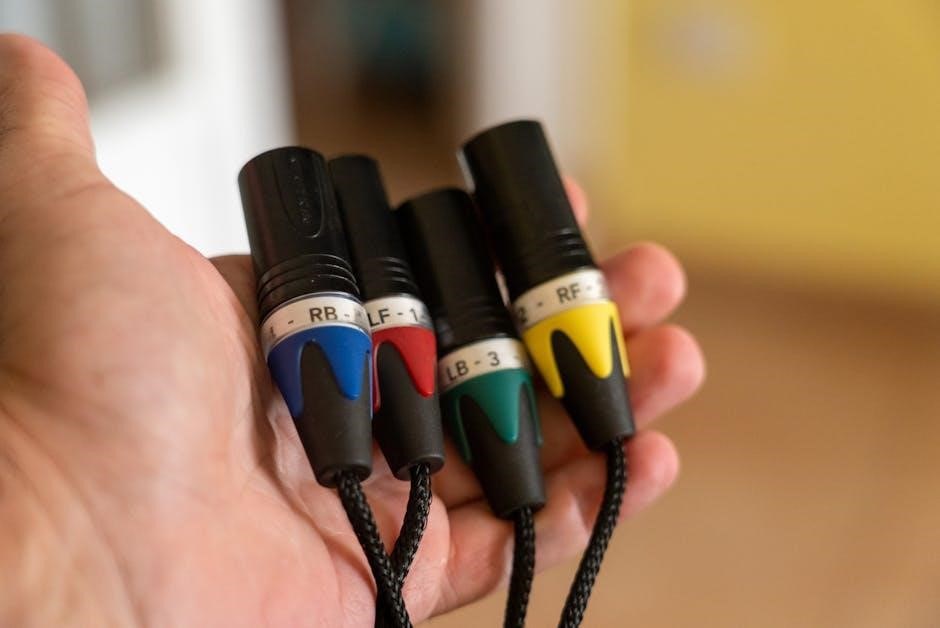
Double-check all connections to prevent shorts or malfunctions. Ensure wires are firmly inserted into the terminals, avoiding loose connections. If your system uses a heat pump, consult the manual for specific wiring configurations.
For 24VAC systems, verify proper voltage before proceeding. Avoid stripping wire insulation excessively to prevent shorts.
Initial System Setup and Configuration
Upon powering on the VisionPRO 8000, the thermostat will guide you through an initial setup process. Follow the on-screen prompts to configure basic settings, including system type (heating, cooling, heat pump). Select the appropriate system changeover method – automatic or manual, based on your HVAC setup.
The thermostat will ask you to identify your system’s wiring configuration. Accurately answer these questions to ensure proper operation. Configure fan control settings (auto, on) according to your preferences.
Review and confirm all settings before proceeding. Access advanced settings later to customize schedules and preferences.
Powering On and Basic Navigation
After installation and wiring, power on the VisionPRO 8000. The touchscreen display will illuminate, initiating the startup sequence. Familiarize yourself with the touchscreen interface; it’s designed for intuitive operation. Use gentle taps to navigate menus and select options.
The main screen displays current temperature, setpoint, and operating mode. Swipe left or right to access different screens, including scheduling and settings. The menu button, typically located at the bottom of the screen, provides access to all configuration options.
Explore the interface to understand the layout and functionality. Refer to the on-screen help for detailed explanations of each feature.
Date and Time Setting
Accurate date and time settings are crucial for proper scheduling and system operation. Access the settings menu via the touchscreen interface. Navigate to the “Date/Time” option, typically found within the system configuration settings.
Use the touchscreen keypad to input the current date, month, and year. Similarly, set the time, ensuring correct AM/PM designation. Confirm your entries by selecting “Save” or “Apply”.
Verify the accuracy of the displayed date and time. Incorrect settings can lead to scheduling errors and inaccurate system performance. The VisionPRO 8000 relies on this information for automated functions.
Programming Heating and Cooling Schedules
The VisionPRO 8000 allows for customized heating and cooling schedules to optimize comfort and energy savings. Access the “Schedule” menu through the touchscreen interface. You can create different schedules for weekdays and weekends, or individual days.
Define time periods (e.g., Wake, Leave, Return, Sleep) and set desired temperatures for each period. Select “Heat” or “Cool” mode for each schedule segment. Utilize the touchscreen to easily adjust times and temperatures.

Review your schedule carefully to ensure it aligns with your lifestyle. Save the schedule to activate it. The thermostat will automatically adjust temperatures based on your programmed settings.
Creating Custom Schedules
The VisionPRO 8000 offers flexibility beyond pre-set schedules. Access the “Custom Schedule” option within the programming menu. Name your custom schedule for easy identification. Define unique time periods tailored to your specific needs – perhaps for home offices or specific activities.
Assign temperatures for both heating and cooling to each custom time period. Select the days of the week the schedule applies to. Copy and paste existing schedule segments to expedite the process. Review the entire custom schedule before saving.
Save your custom schedule and activate it. The thermostat will now follow your personalized settings, enhancing comfort and energy efficiency.
Temperature Setback Options

The VisionPRO 8000 provides several temperature setback options for energy savings. Utilize “Temporary Hold” to override the programmed schedule for a defined period. Employ “Permanent Hold” to maintain a constant temperature indefinitely. Explore “Geofencing” (if supported by your model) for automatic setbacks based on your location.
Configure “Smart Response” to learn your system’s heating and cooling rates, optimizing setback recovery times. Set “Vacation Mode” for extended absences, maintaining a minimum temperature to prevent freezing. Adjust setback temperatures to balance comfort and energy conservation.
Monitor energy usage reports to assess the effectiveness of your setback strategies.
Advanced System Settings
The VisionPRO 8000 offers advanced settings for customized control. Access “System Changeover” to select automatic or manual switching between heating and cooling modes. Configure “Fan Control” for “On” or “Auto” operation, or utilize circulation settings. Adjust “Dynamic Adjustment” (if available) for optimized comfort based on outdoor temperature.
Explore “Equipment Type” settings to ensure compatibility with your specific HVAC system. Calibrate the temperature sensor for accurate readings. Review “Filter Change Reminders” and customize the reminder frequency. Enable or disable backlight dimming for display preferences.
Consult the full manual for detailed explanations of each advanced setting.
Fan Control Configuration
The Honeywell VisionPRO 8000 allows flexible fan control options. You can select “Auto” mode, where the fan operates only during heating or cooling cycles, maximizing energy efficiency. Alternatively, choose “On” mode for continuous fan operation, providing consistent air circulation.
Explore the “Circulate” setting to run the fan intermittently, even when heating or cooling isn’t active, improving air mixing and temperature distribution. Customize the circulation frequency to suit your preferences. Access these settings through the main menu, navigating to “System” and then “Fan Control”.
Refer to the complete manual for detailed instructions and troubleshooting tips regarding fan operation.
Filter Change Reminders
The VisionPRO 8000 features a programmable filter change reminder, ensuring optimal HVAC system performance and air quality. Set a reminder interval based on your filter type and usage – typically every 1-3 months. Access this feature through the main menu, navigating to “Maintenance” and then “Filter Reminder”.
Customize the reminder settings to receive a notification on the thermostat display when it’s time to replace the filter. Regular filter changes prevent dust buildup, improve airflow, and extend the lifespan of your HVAC equipment. Ignoring filter changes can lead to reduced efficiency and potential system failures.
Consult your HVAC system’s documentation for specific filter recommendations.
Troubleshooting Common Issues
Experiencing problems with your VisionPRO 8000? Common issues include no power, incorrect temperature readings, or unresponsive controls. First, verify the power supply – ensure the 24VAC power is connected correctly and the circuit breaker hasn’t tripped. For inaccurate readings, recalibrate the thermostat or check for drafts affecting the sensor.

If the screen is blank, confirm the wiring connections, particularly R and C terminals. Consult the wiring diagram for proper configuration. For further assistance, visit http://yourhome.honeywell.com or contact Honeywell Customer Care toll-free for dedicated support.
Remember to save these instructions for future reference.
No Power to Thermostat
If your Honeywell VisionPRO 8000 thermostat displays no power, begin by verifying the 24VAC power source. Check the circuit breaker supplying power to the HVAC system to ensure it hasn’t tripped. Inspect the wiring connections at both the thermostat and the furnace/air handler, specifically the R and C terminals.
Confirm the ‘C’ wire (common wire) is securely connected, as this is crucial for providing continuous power. A loose or disconnected ‘C’ wire is a frequent cause of power loss. Refer to the wiring diagram for correct terminal assignments. If issues persist, consult a qualified HVAC technician.
For assistance, visit http://yourhome.honeywell.com.
Incorrect Temperature Readings
If the Honeywell VisionPRO 8000 displays inaccurate temperature readings, first ensure the thermostat isn’t exposed to direct sunlight, drafts, or heat-generating appliances. These factors can significantly impact accuracy. Verify the thermostat is level on the wall plate, as an uneven installation can cause errors.
Check for proper airflow around the thermostat; obstructions can lead to false readings. Calibrate the temperature within the thermostat’s settings menu if a consistent offset exists. Compare the thermostat’s reading with a known accurate thermometer. If discrepancies continue, inspect the temperature sensor for damage.
For further support, visit http://yourhome.honeywell.com.
Resources and Support
For comprehensive assistance with your Honeywell VisionPRO 8000, a wealth of resources are readily available. Visit the official Honeywell website at honeywell.com to access detailed product information, specifications, and troubleshooting guides. Explore yourhome.honeywell.com for dedicated support pages, frequently asked questions (FAQs), and helpful installation videos.
Direct customer care is accessible through the Honeywell Customer Care toll-free number – call 1-800-468-1513 for personalized assistance. Online manuals and documentation are easily downloadable from the Honeywell support portal. Ensure you retain your warranty information for potential claims or service requests, as detailed in the product documentation.
Honeywell Customer Care Contact Information
Need direct assistance with your Honeywell VisionPRO 8000 thermostat? Honeywell provides multiple avenues for support. For immediate help, contact Honeywell Customer Care toll-free at 1-800-468-1513. Their knowledgeable representatives are equipped to address installation questions, troubleshooting issues, and warranty concerns.
Alternatively, visit the Honeywell customer support website at customer.honeywell.com for access to a comprehensive knowledge base, FAQs, and online chat support. You can also find helpful resources and troubleshooting guides at yourhome.honeywell.com. Ensure you have your model number and date of purchase readily available when contacting support for efficient assistance.
Online Manuals and FAQs

Access a wealth of information regarding your Honeywell VisionPRO 8000 thermostat online! Honeywell provides downloadable operating manuals for the TH8000 series, offering detailed instructions on installation, programming, and advanced settings. These manuals, like the 69-1894EFS-03 version, are available on the Honeywell website.
Explore the extensive Frequently Asked Questions (FAQs) section at yourhome.honeywell.com to find quick answers to common issues and troubleshooting steps. The Honeywell customer support website, customer.honeywell.com, also hosts a searchable knowledge base. These resources empower you to resolve many issues independently, saving time and ensuring optimal thermostat performance.
Warranty Information
Your Honeywell VisionPRO 8000 thermostat is backed by a limited warranty, ensuring protection against manufacturing defects. Specific warranty terms and duration vary depending on the region and purchase date; therefore, carefully review the documentation included with your product.
Honeywell Limited provides warranty coverage, as detailed in their official warranty statements. This warranty typically covers defects in materials and workmanship under normal use. To make a warranty claim, retain your proof of purchase and contact Honeywell Customer Care. Warranty coverage does not extend to damage caused by improper installation, misuse, or unauthorized modifications.